


NEW Upgraded “HM15 At Hand” Take the Excitement,
Energy and Education of Hospital Medicine 2015
EVERYWHERE YOU GO
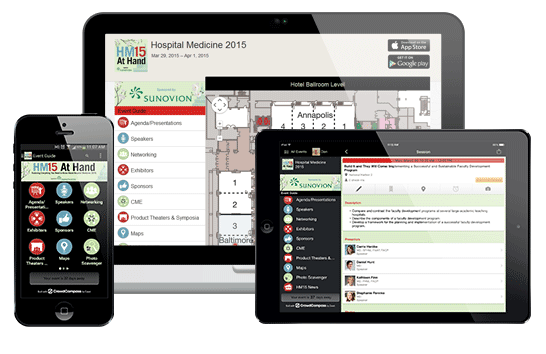
The free HM15 At Hand app features everything you need to know about Hospital Medicine 2015 (HM15) … all in one convenient, easily accessible location.:
- Access the event schedule anytime and customize your agenda
- See all the speakers, read their bios and view presentations
- Check out the exhibitors and easily locate their booths on the Exhibit Hall Floorplan
- Get important updates and exciting offers
- See who is attending and share contact information
- Win prizes for participating in the Photo Scavenger Hunt
- And more!
Access the HM15 At Hand app by downloading the “SHM Events” app within your device’s app store or going directly to www.hm15athand.org. Once this app is downloaded, “Hospital Medicine 2015” will be listed under the events section.
Download NowHow do I log in to the app?
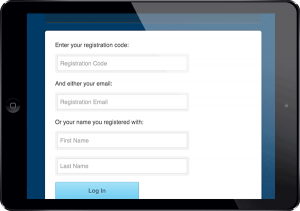
- Log in with your Registration Code by tapping on the Networking icon and selecting Sign in.
- Input your Registration Code and either the email or name you used to register.
- If you do not have your Registration Code, use the “Retrieve it Here” link to have the code sent to you or reference the back of your HM15 attendee conference badge.
Already have a CrowdCompass Account?
- Tap the “Log in” button at the bottom of the page.
- Enter your email address and password.
- If you do not recall your password, use the “Forgot your Password?” link.
Tap “Didn’t Receive Confirmation Instructions” if you do not recall your password or email.
Contact CrowdCompass Support should you have any questions about the login process:
Phone: 888.889.3069, option 1 (Monday – Friday, 24 hours/day; Saturday – Sunday, 9:00 a.m. - 9:00 p.m. EST)
Email: [email protected]
How do I set up my profile?
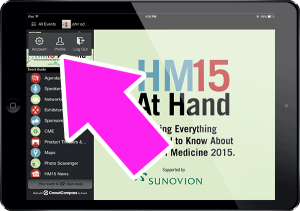
Once you download the app, tap on the Event Extras (the three horizontal lines in the top left-hand corner of the Event Guide). Select “Log in” and enter your Registration Code and either your first and last name, OR the email address you used to register. Tap on your profile and customize the settings and information. To contact or share with other attendees, tap on the Attendees icon and join the list.
Why should I log into the app?
When you create a profile within the app, you gain access to more features including the ability to:
- Create a customizable meeting agenda
- Participate in the Photo Scavenger Hunt
- Directly message attendees
- Take notes
- Post to the “Event Compass” feed as well as your own preferred social media outlets
Attending a Pre-Course? All Pre-Course material will be located in the HM15 At Hand app.
Once you log in to the app, go to Event Extras and click “My Schedule.” If you are registered, your Pre-Course will appear at the appropriate time. All course information and files will be prepopulated within a week from the Pre-Course date. Please note that you must log in with your Registration ID and email. Creating a CrowdCompass account will not populate your Pre-Course materials.
What if I don’t have a smartphone or tablet?
Visit www.HM15AtHand.org/web to view the Web version of the app.
The Photo Scavenger Hunt is all About Having a Great Time and Sharing Your Experience With Others.
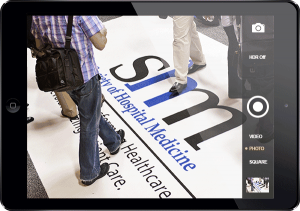
How do I participate in the Photo Scavenger Hunt?
It’s simple—just take photos that represent each challenge and submit them for points.
You Must Be Logged Into the App to Play
Access the HM15 At Hand mobile app by downloading the “SHM Events” app within your device’s prospective app store or going directly to www.hm15athand.org. Once this app is downloaded, “Hospital Medicine 2015” will be listed under the events section.
How do I log in to the app?
- Log in with your Registration Code by tapping on the Networking icon and selecting Sign in.
- Input your Registration Code and either the email or name you used to register.
- If you do not have your Registration Code, use the “Retrieve it Here” link to have the code sent to you.
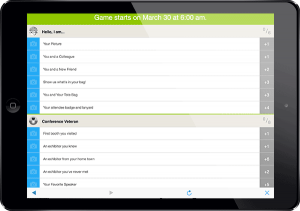
See FAQ section within the app for more log in help.
Here’s how:
- Tap Profile at the top of the screen to see a list of badges and challenges to complete.
- Pick a challenge, then tap the camera to go to the camera view.
- Take a photo, choose from your gallery, or tap X to cancel.
- Confirm your photo on the submission page by tapping Submit.
- You’re all set! You’ll be awarded the points for your challenge, and the camera icon will become your submission photo.
Not satisfied with your submission? Tap the photo icon to resubmit the challenge.
How to Earn Badges
Earn badges by completing all the challenges for that category. Once you have earned that badge, you should see it change to show that you’ve completed all its challenges.
Photo Scavenger Hunt Prizes
Prizes will be awarded in tiers to the Top 10 point-earners in the game.
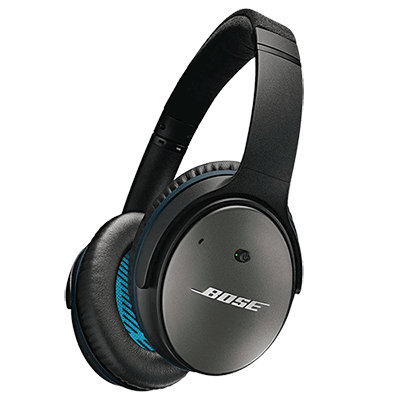
First, second, third and fourth place winners will receive Bose QuietComfort 25 Headphones.
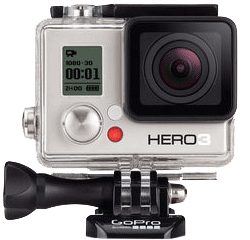
Fifth, sixth and seventh place winners will receive GoPro HERO3: White Edition Cameras.
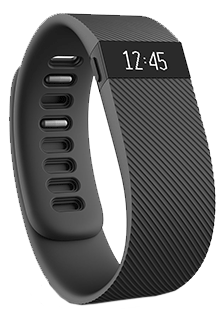
Eighth, ninth and tenth place winner will receive Fitbit Charge Wireless Activity Wristbands.
Awarding prizes
Emails will be sent to the top 10 winners notifying them of their winning spot, their prize, instruct them to pick up their prize at the registration desk before 2:30 p.m. on April 1, 2026 or provide their shipping address.
I’m Lost! Help!
We’re sorry you’re lost. Contact Support by emailing [email protected], or call us at 888-889-3069, option 1. Let us know your first and last name, your account’s email address, and the name of the event so we can assist you.
For on-site assistance at HM15, visit the IT Help Desk or SHM Exhibit Booth #623.

